I strongly recommend that you read through this entire Instruction at least once before attempting to enter data. Feel free to follow the Links and 'look' at the pages BUT do not enter data until you are happy with how this all works. As will be mentioned later, there is a MAJOR flaw at the moment so it's important you don't make too many mistakes.
As you'll be reminded later, once you've learnt how to Search, I recommend you check ALL the current entries to see how data is formatted, divided and displayed. This will help you develop a consistent approach before you start entering data.
The three options available (Enter, Search and Update (Amend) are available from the three bottom links Here:
http://www.wattsfamilyhistory.solutions.on-rev.com/index.html
I suggest if you haven't already done so, bookmark this (Instructions) page, the above referenced page, and the three pages shown below.
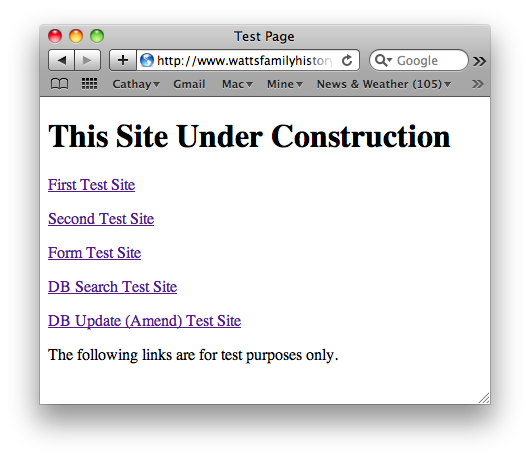
So, first up, let's check out the "Form Test Site".
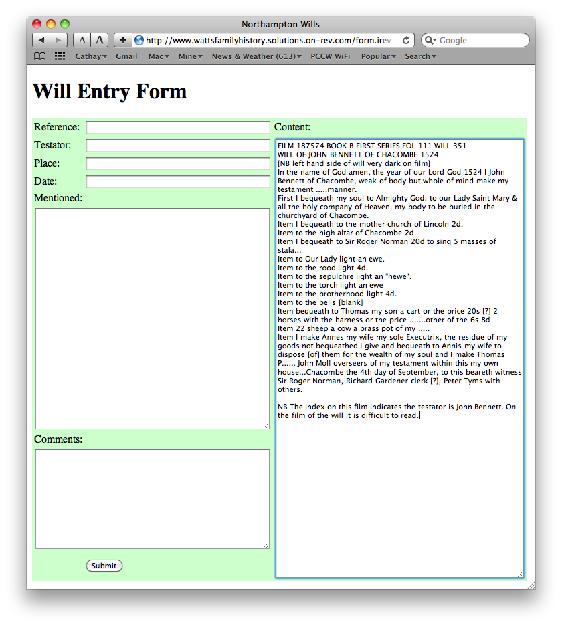
This is where you will enter All the Wills. It should look a lot like this:
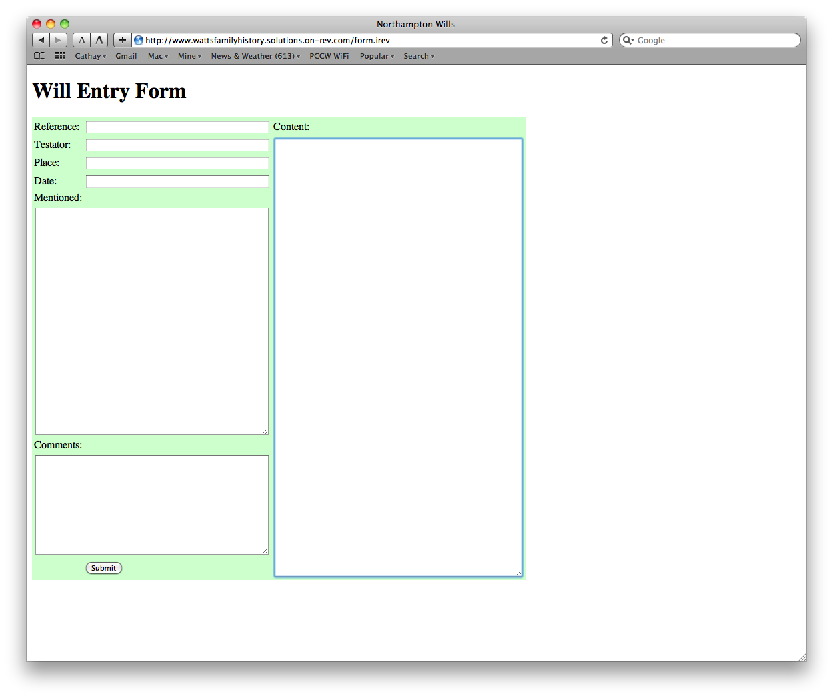
NOTE: You can change the size of the Content, Mentioned and Comments fields by dragging on the bottom right hand corner of each field.
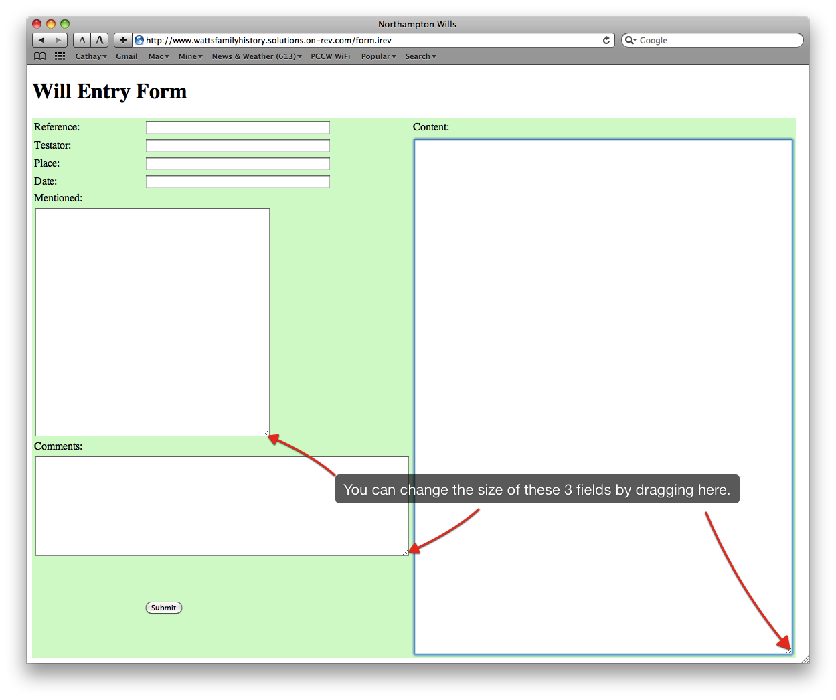
For ease of Data entry you need to set yourself up so you have the 'original' data in one window, and this Date Entry Form displayed in another window. Once set up, simply select the entire Will including the Film reference down to any notes you may have at the bottom; and then select Copy.
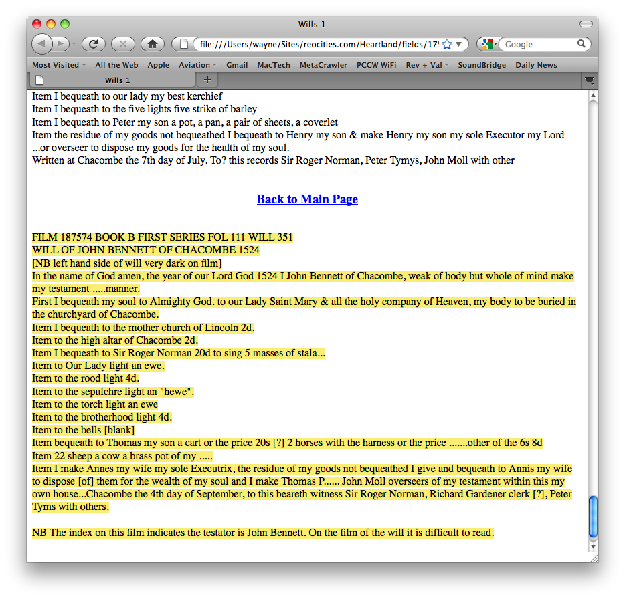
Now go back to the Will Entry Form and Paste the data into the Content field.
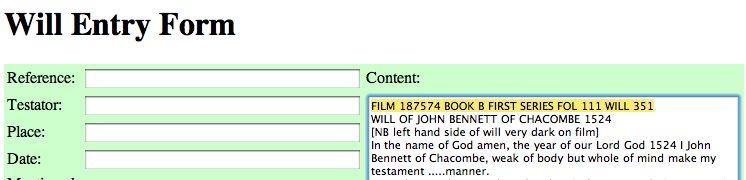
Next, enter the Reference by Cutting the top line and Pasting into the Reference field. Be careful not to include any preceding or trailing spaces.
NOTE: It is important to avoid Typos, that is why I suggest Cutting and Pasting - where appropriate.
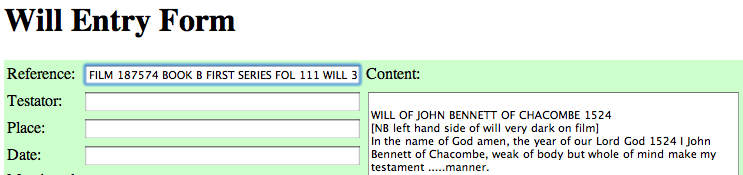
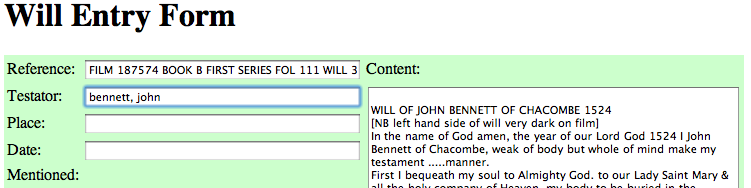
Next, Type in the Testator's name. Please ensure that it is Surname First, no space, then a comma, a single space, then any first names. Unfortunately you can't Cut and Paste as I've changed the format around to Surname, then a comma, a space, then any first names.
NOTE: It is important to avoid any Typos. Upper and Lower case is NOT important as names will be automatically formatted.
Next, Copy and Paste the Place, again avoiding any preceding or trailing spaces.
NOTE: Upper and Lower case is NOT important as Place will be automatically formatted.

Next, Enter the Date.
NOTE: The Date in the Heading Line only contains the year.
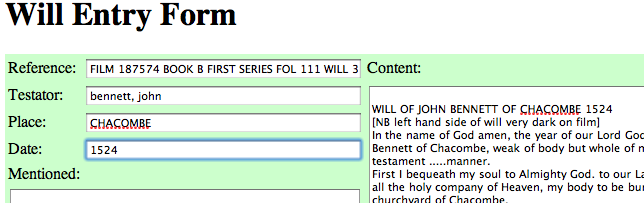
Next, if there are any comments in the body of the Will, remove these and place them in the Comments field.
(The image below shows reference to Date format yyyy-mm-dd - this is no longer valid - only yyyy is used.)
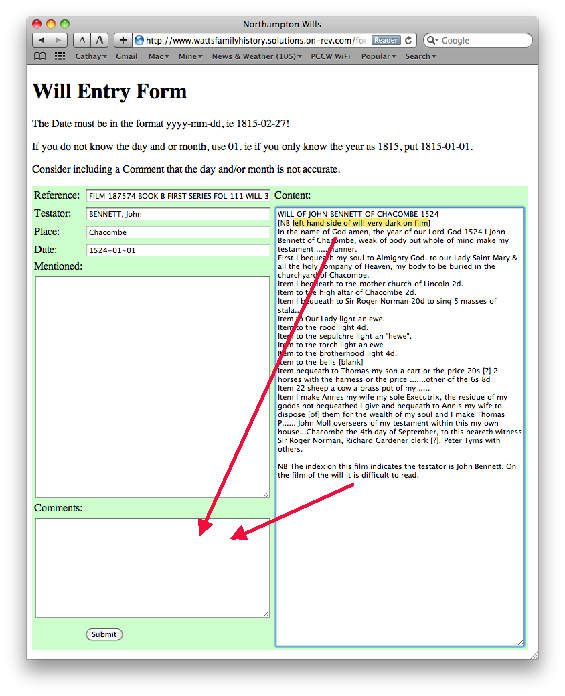
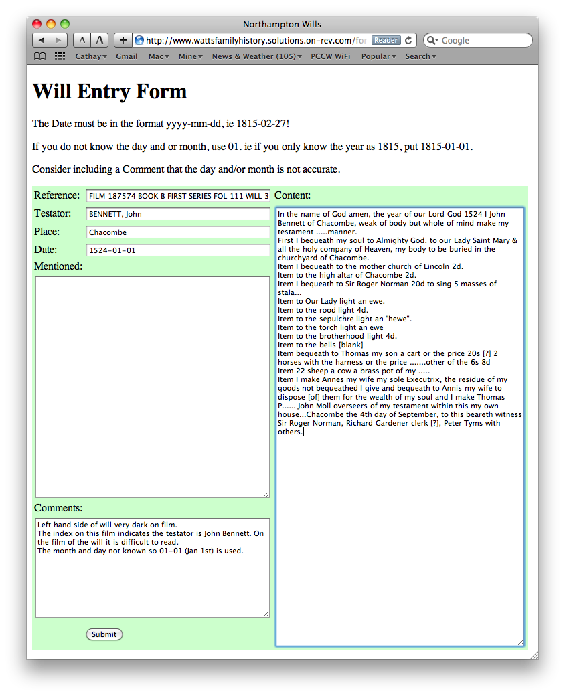
Now clean up the body of the Will, by removing the Heading line, and any preceding or trailing spaces.
(The image below shows reference to Date format yyyy-mm-dd - this is no longer valid - only yyyy is used.)
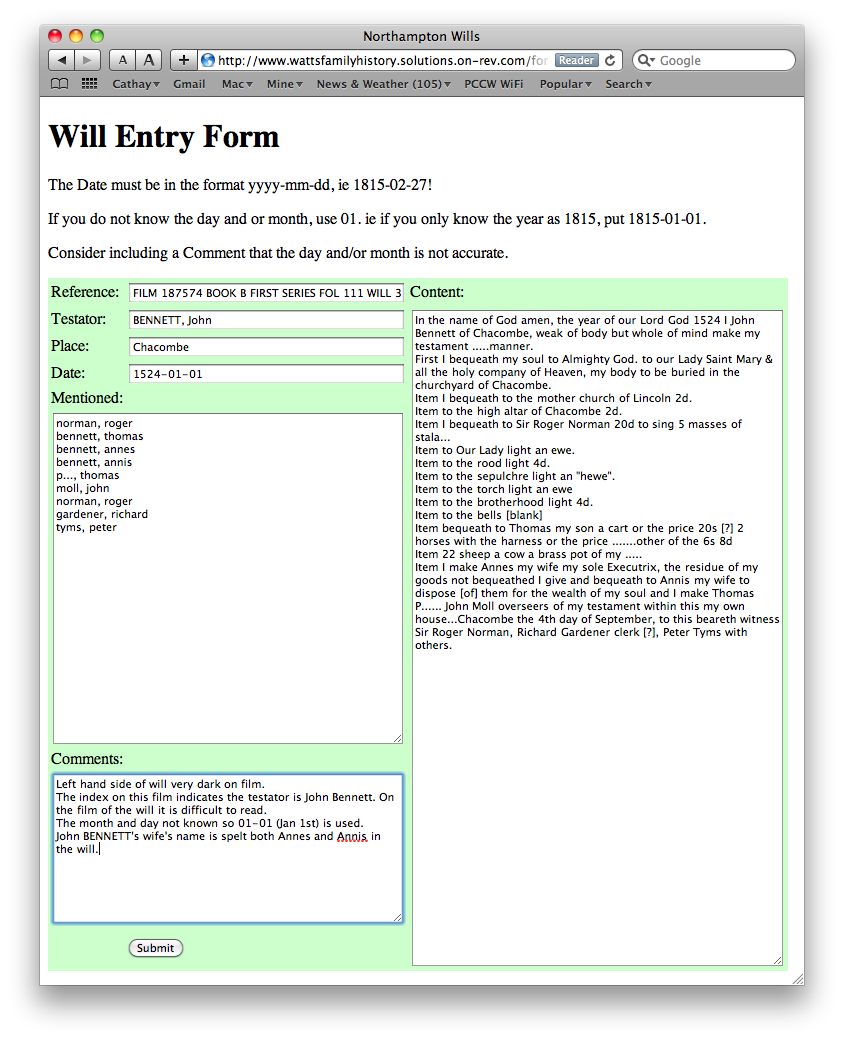
The last thing left to do is to read through the Will and enter all names mentioned into the Mentioned field, one per line as shown below. Do not bother entering the names alphabetically, they will automatically be sorted once entered. As you enter names it may be obvious that more Comments need to be added, or possibly the Content of the Will may contain a Typo. Notice in this Will Annes is also spelt Annis, was this a mistake when the Will was written or when it was transposed. Either way, now is the time to either fix it in the Content field, or enter BOTH bennett, annes AND bennett, annis into the Mentioned field. Also, as shown below, a Comment pointing this fact out may be appropriate.
NOTE: All names are entered as Surname followed by a comma, then a space, then the first names, each on a separate line. This is to make formatting, sorting and searching by name a whole heap easier. To speed up entry type all in lower case, formatting will be done automatically when the data is submitted.
NOTE: If either name is unknown, then enter unknown, ie unknown, william or watts, unknown. If part of the name is missing, just enter three periods, as in the below example; p..., thomas.
BEFORE clicking the Submit button, have one final crosscheck of all the data. Names should be correctly formated, the date should be correctly formated, the Content should not have any Comments, FILM reference or Heading in it. Once you are sure the data is OK, click Submit.
(The image below shows reference to Date format yyyy-mm-dd - this is no longer valid - only yyyy is used.)
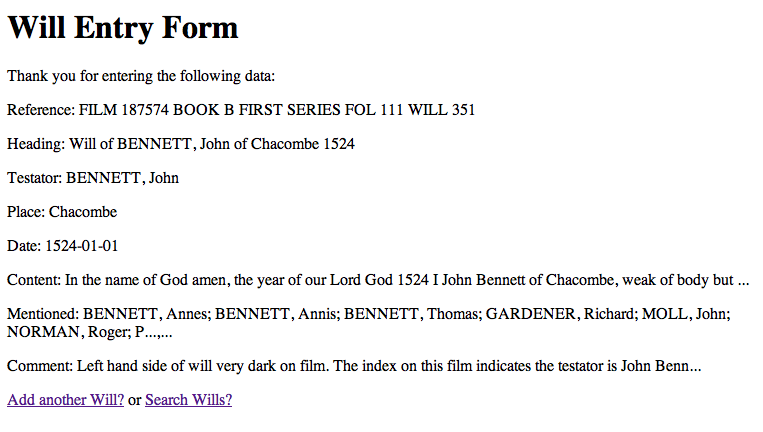
If there were no massive errors with the data then a summary of the entered data should be displayed, similar to the one displayed below.
NOTE: Just because the data was accepted doesn't mean that other errors did not occur. Only very extreme errors are checked for.
NOTE: In this summary a Heading has been created, all names have been formatted, and the Mentioned names have been sorted in alphabetical order.
This summary is just that, only a summary of the data entered, as such some fields (Content, Mentioned and Comments) may be truncated with ... for display purposes only - all the data has been entered. In the case below it is just coincidence that the name p..., thomas has been truncated and appears as P...,... You will not need to double check every entry you make, but if there was something in the Summary that indicated a problem you could do a Search to crosscheck exactly what was entered. As shown below two links are provided to either "Add Another Will" or "Search Wills".
No link is provided to Update (Amend) a Will - there's no point you need to Search first, which will be explained later.
(The image below shows reference to Date format yyyy-mm-dd - this is no longer valid - only yyyy is used.)
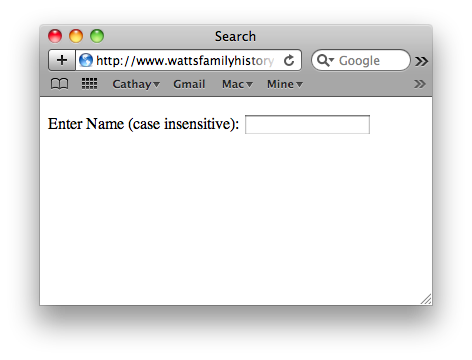
Lets follow the "Search Wills" link.
Pretty boring I know, but it's a start. Basically it works exactly the same as the other Search site I showed you which searches all the music in my music collection. Simply type in a letter and wait for a response.
NOTE: Currently the search is set up as case insensitive, so 'wa' will find WA, wA, Wa and wa. At this point, with so few entries, that is good, but as more entries are made it will probably be wise to be able to search case insensitive, ie if you are searching for surname Johnston, then all surnames appear in here as CAPITALS, so typing JOHN in a case sensitive search would NOT find and first names John.
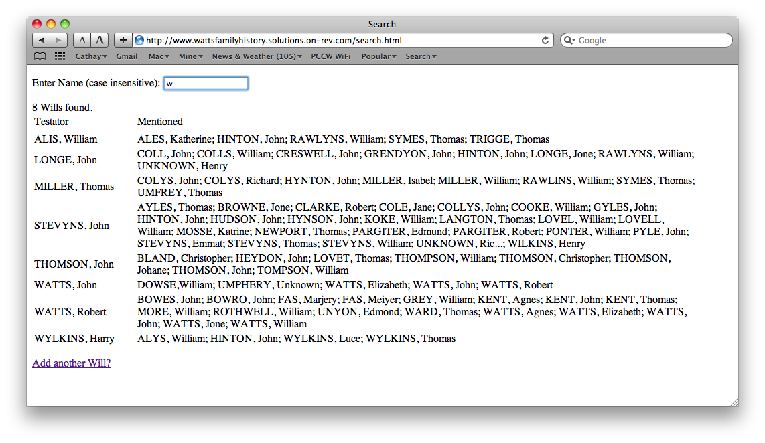
As currently set up as case insensitive, entering the letter 'w' will find all Wills that contain a name with either W or w anywhere in it. After each letter is entered wait for a response, which should include a count of how many Wills that match the search, plus a summary (Testator and Mentioned) of each Will.
To see the Will in full, what you need to do is keep entering letters into the Search field until a manageable number of Wills is found. Enter the letter a, so a search will be done on 'wa' to see what happens.
NOTE: Currently this 'feature' is set to kick in once 2 or less Wills are found. The only reason it is set so low is so I can demonstrate how this works with the few Wills that are currently in the Database. Once more Wills are entered it will be necessary to raise this number, very easy to do so you can trial any number you like. What it does demonstrate is how you must narrow the search down by entering more letters. In some cases it may require entering the entire surname, followed by a comma, a space, and then letters from the first name. This may be another reason to consider CASE sensitive searches so that searches can be narrowed down more quickly.
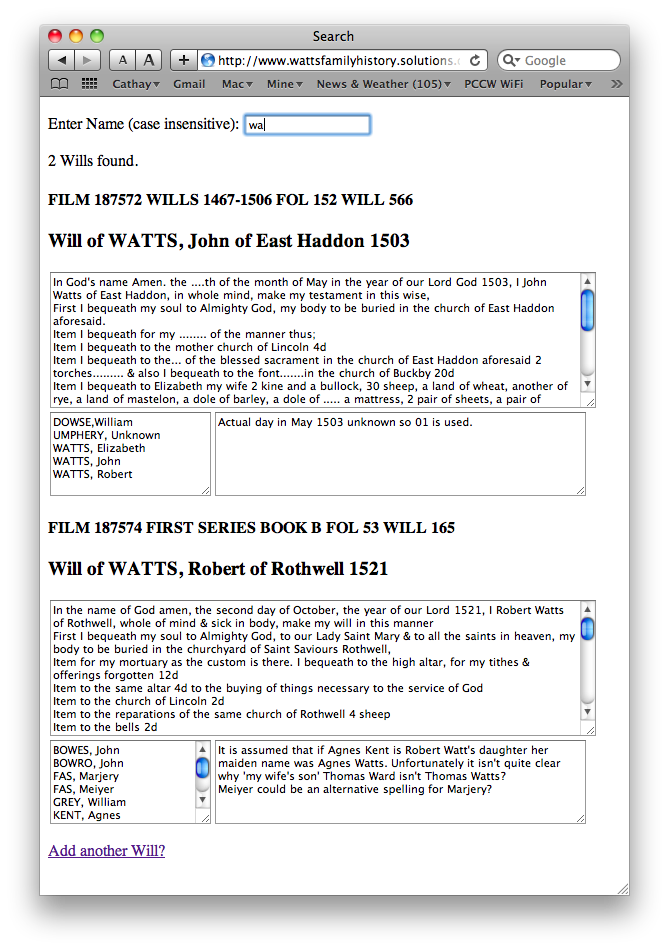
So here's what you'll be presented with once you've entered enough data to reduce the number of Wills found to a manageable number - currently set to 2 for test purposes.
NOTE: Each of the 3 fields (Content, Mentioned, Comments) can be enlarged by dragging on the bottom right corner.
IMPORTANT: This is what I REALLY want you to comment on. The final display of this information.
Ignoring the boring white surrounds and other niceties which can be added at a later date, before YOU get too carried away adding more Wills, I'd like to know if this 'works' for you. Do you think the method of Search, whereby you start with a couple of letters, which will give you a Summary, by which you should be able to pick out more letters to enter into the Search field, which will eventually reduce the number of found Wills to a manageable number that can be displayed. Do you like the layout of the Reference and Heading lines, followed by 3 boxes.
Would you like to see the data presented differently?
NOTE: Whilst you can select the data in each field, so you can Copy and Paste it if necessary, although you can type into each of the three fields it has NO EFFECT. Updating (Amending) Entries is handled separately and will be covered shortly.
NOTE: If you delete all entries in the search field, you'll be presented with a count of the total number of Wills in the Database (currently 10) followed by a Summary list of every single one.
(The current Search page looks a little different to the image below - I've added 'Back to Top' links after every Will.)
Once you know how to Enter and Search Wills, there will come the time that you need to Update (Amend) an entry. Follow this link to the Update page and you should see a page that looks like the one shown below.
As you can see below, this page looks very similar to the Will Entry Form page.
NOTE: Because this page does look so much like the Will Entry Form page I have not included too many links to it. Make sure you place it in your Bookmarks and clearly label it so you don't confuse it with the Will Entry Form page.
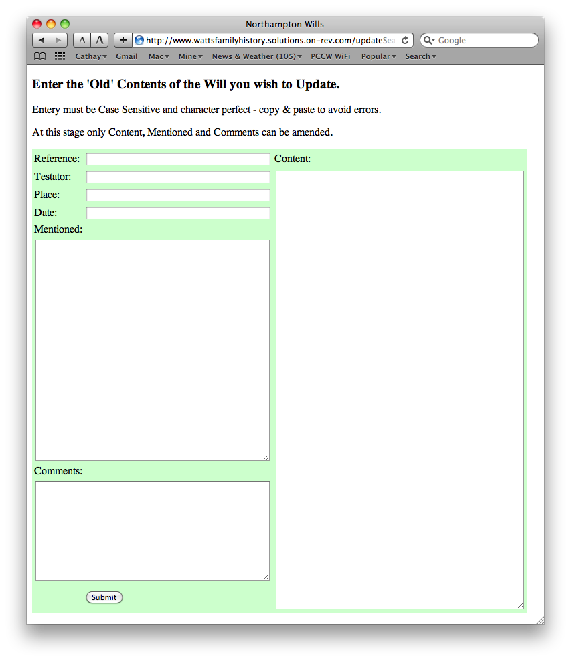
To specify the Will you wish to Update (Amend), you need to Copy the Will Content into the Content field, CHARACTER PERFECT! The easiest way to do this is to Search for the particular entry, Copy the Content, go to the Update page and Paste the Content into the Content Field.
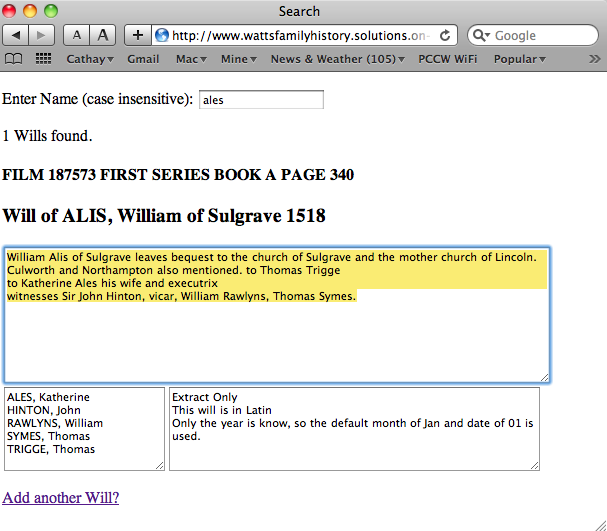
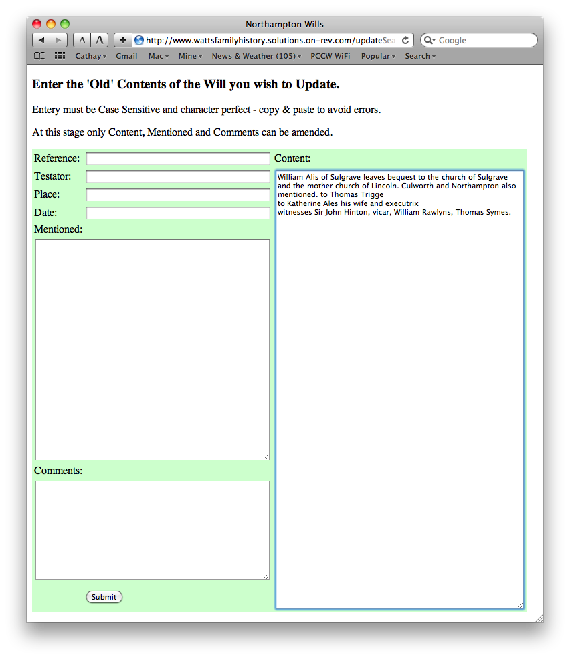
Here is the Update (Amend) page with the Will Content pasted into the Content field.
Then click on the Submit button.
You will then be presented with all the fields filled in ready for amendment.
IMPORTANT: You can ONLY amend the Content, Mentioned and Comments fields.
IMPORTANT: DO NOT CHANGE THE DATA IN ANY OTHER FIELD
This is why it is so important that you double check your entries before clicking the Submit button.
Currently, to determine which Will you are updating (as you can only update one at a time) the Database needs to know the Reference AND the Heading (which is made up of the Testator, Place and Date). The reason it needs both of these pieces of information is because some entries have the same Reference: see the Wills for ALIS, William and MILLER, Thomas which appear on the same page: FILM 187573 FIRST SERIES BOOK A PAGE 340
IMPORTANT: Therefore, if you change the Reference, Testator, Place or Date, the Database will no longer be able to find the specific Will to Update!
MAJOR FLAW: If you accidently Submit the wrong Reference, Testator, Place or Date there is no way for you to Amend the Entry. Currently you will need to make a NEW Entry with the correct data, and email me with the Reference, Testator, Place and Date of the incorrect data so I can remove the Entry.
(The image below shows reference to Date format yyyy-mm-dd - this is no longer valid - only yyyy is used.)
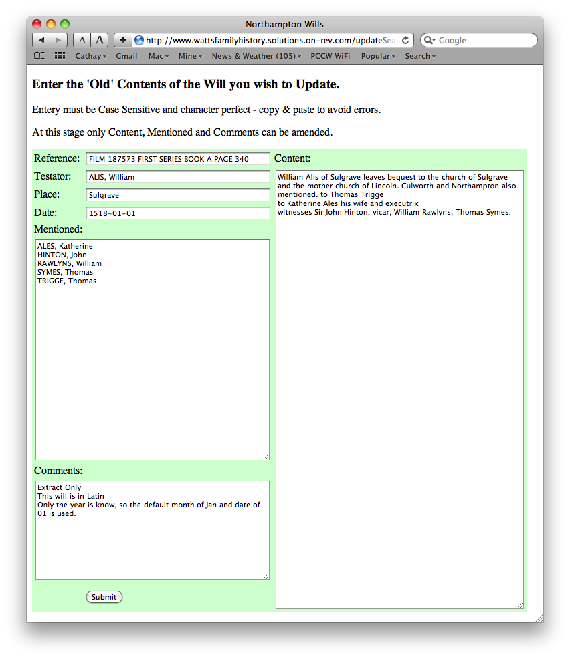
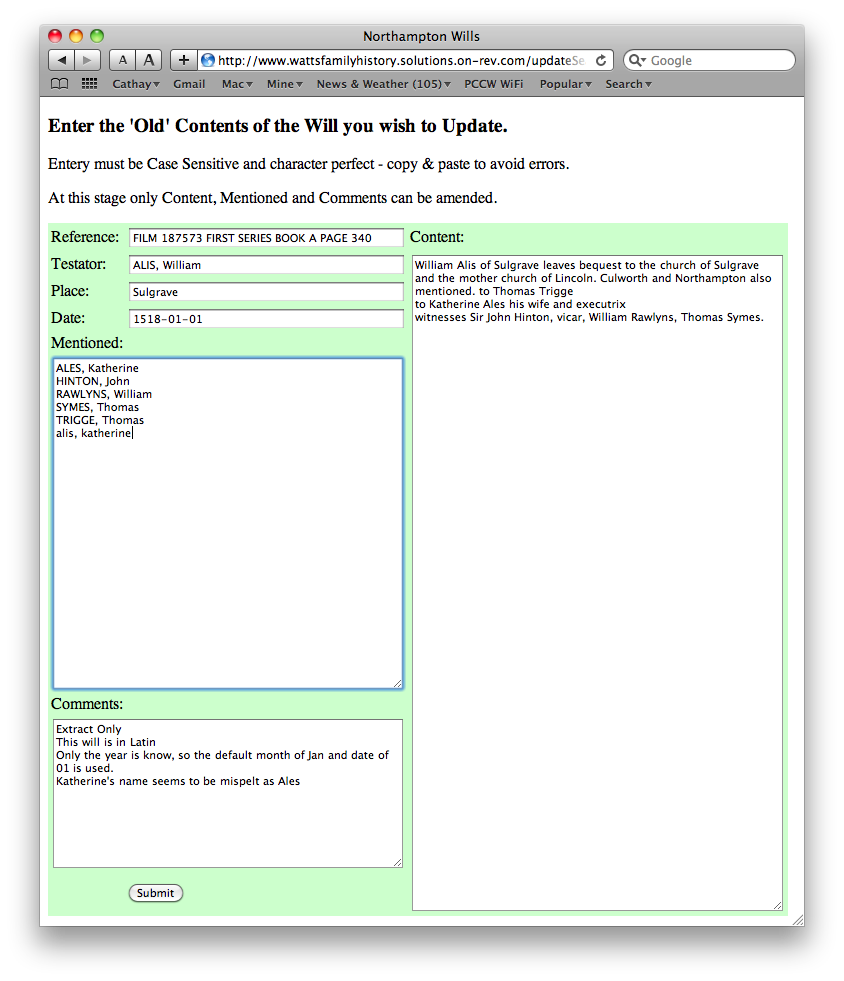
You will note in the entry below I've realised that I didn't enter the alternate spelling of ALES, Katherine into the Mentioned field, so I've added 'alis, katherine' at the bottom of the list of names, and made a Comment entry.
NOTE: All names are entered as Surname followed by a comma, then a space, then the first names, each on a separate line.
NOTE: Upper and Lower case is NOT important, this will be automatically fixed.
(The image below shows reference to Date format yyyy-mm-dd - this is no longer valid - only yyyy is used.)
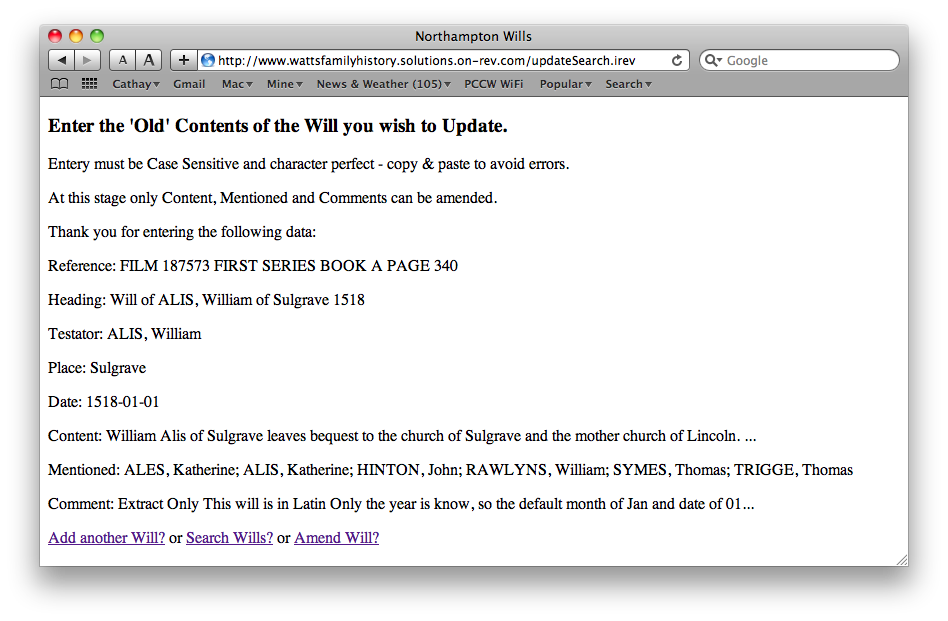
As with the Will Entry Form, once you click the Submit button a Summary of the Entry will appear.
You can see that the Database has automatically formatted and sorted the names and placed ALIS, Katherine second in the list.
(The image below shows reference to Date format yyyy-mm-dd - this is no longer valid - only yyyy is used.)
The names are entered as 'SURNAME, first second ... name' because it makes it so much easier to Enter, Format and Search. Whilst it's all too easy when there is only two names, once the number increases, names like Fay Lucille McKenzie Edmonds or Jarom Reece Lank McKenzie become a real hassle for computers to correctly pick the Surname. Most Database get around this by providing two separate fields (which I could do if you wanted). I considered it a whole heap easier to provide one field and follow a simple Format to follow, 'surname, first second ... name'.
If there were thousands of people learning to use this, then I'd go with a two field option for names, but as it's only you, I figured you'd be able to figure it out.
On the other side of the coin is the displaying of the names in SURNAME, First Second ... Name format. Personally I find it very easy to skim, but this is your data and you know the kind of people that will be looking at the data and what they 'expect' to see.
Again, this is in the 'test' phase to see what works and what doesn't. So now is the time to speak up and ask for changes.
The one big advantage of the Database, assuming you don't want too many changes to the data fields, is that unlike your geocities websites, which combines both the format and data in one and therefore if you want to change the format you have to rewrite EVERY web page, with a Database the Data and Format are separate. Once you are happy with the basic data format you can go ahead an enter Wills to your hearts content and I can slowly make changes to the overall webpage format. Both can move forward independently.
That should be enough to play with for a while.